

Getty Images Video Downloader: Editorial vs Creative Clips
Getty Images video downloader guide: editorial versus creative clips, how to pick resolution, how to paste a link, and what to know about credit and licences.

A Getty Images video downloader lets you paste the link of a clip and receive the file, so you can use professional footage in edits without paying for a premium licence plan yourself. The most important thing to learn first is the difference between editorial and creative clips, because it decides what you are allowed to do with the footage. The rest of this guide is practical: finding the right clip, choosing a resolution and avoiding common licence mistakes.
Editorial or creative: which clip is this?
Getty Images sells two broad kinds of content, and the website labels them. Understanding the difference is worth more than any downloading trick.
- Creative clips are produced for commercial work. They are usually staged or conceptual, with model or property releases where people or places are recognisable. Marketing videos, ads and corporate films typically use these.
- Editorial clips document real events: news, sport, entertainment, politics. They are meant to illustrate stories and commentary. They often show recognisable people and brands without releases, which is why they are restricted in how they can be used.
The practical rule: editorial footage is for informing, not for selling. If your video promotes a product, a service or a person, editorial clips are usually the wrong choice. When the page says editorial use only, take it seriously.
How to use the Getty Images video downloader
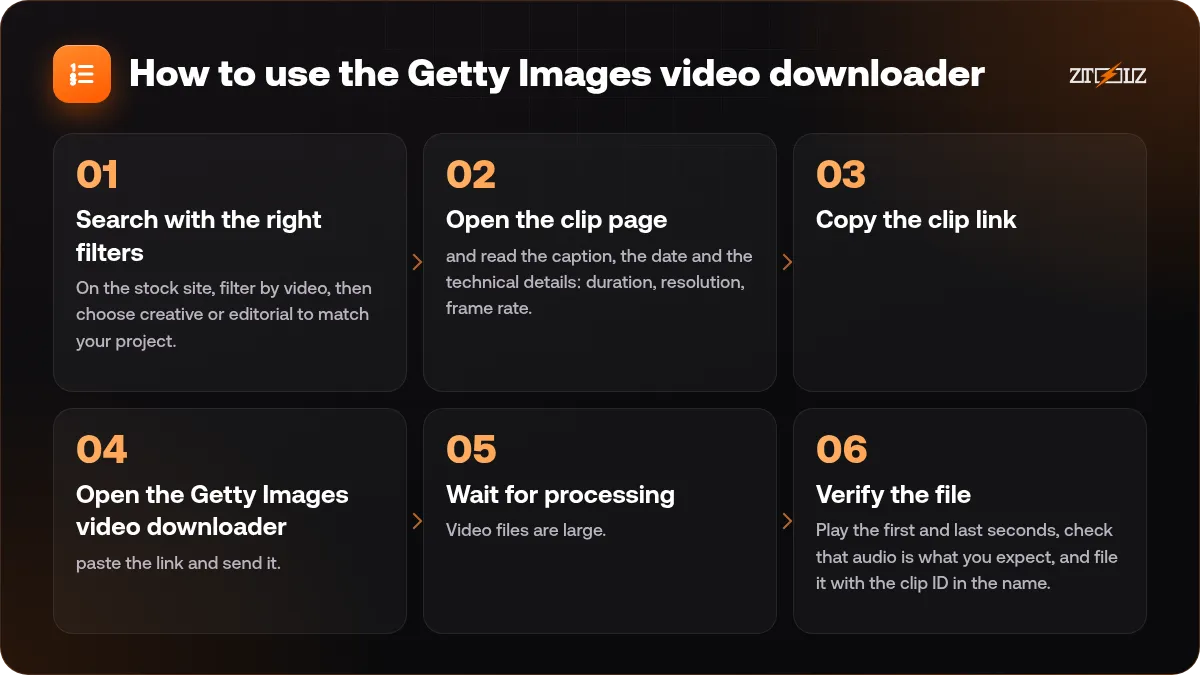
- Search with the right filters. On the stock site, filter by video, then choose creative or editorial to match your project.
- Open the clip page and read the caption, the date and the technical details: duration, resolution, frame rate.
- Copy the clip link.
- Open the Getty Images video downloader, paste the link and send it.
- Wait for processing. Video files are large. Keep the tab open until the download appears.
- Verify the file. Play the first and last seconds, check that audio is what you expect, and file it with the clip ID in the name.
The same method works for the sister library: the iStock video downloader uses the same paste-a-link workflow, and iStock is often a more budget-friendly source of creative clips.
Choosing resolution and format
The question is not how big the file can be, but how big your final video is.
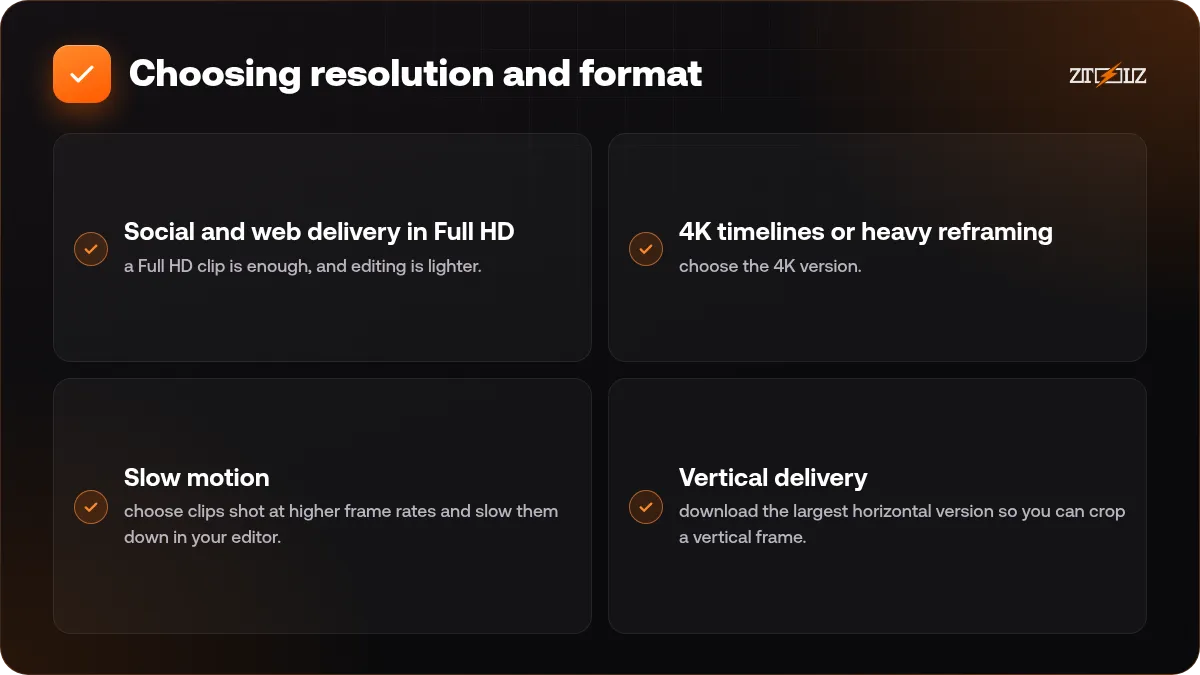
- Social and web delivery in Full HD: a Full HD clip is enough, and editing is lighter.
- 4K timelines or heavy reframing: choose the 4K version. You can crop, push in, stabilise and still deliver sharp Full HD.
- Slow motion: choose clips shot at higher frame rates and slow them down in your editor.
- Vertical delivery: download the largest horizontal version so you can crop a vertical frame.
If your computer struggles with large files, make proxy files in your editor. This keeps the timeline smooth, and the editor swaps the original back in at export.
How to find footage that works
Searching video is different from searching photos, because action matters.
- Add a verb to your keywords: walking, typing, pouring, driving.
- Look for shot type words: aerial, close up, time lapse, slow motion.
- Check the first and last frames. Clips that begin and end with a still moment are easier to cut.
- Prefer a clean background if you plan to add text.
- Avoid clips with obvious dated technology or fashion if the video must age well.
Our guide to the best stock video sites in 2026 helps you decide when to turn to another library.
Credit lines and captions
Editorial footage is often accompanied by a required credit or by caption information, because it records real events. If you use it, keep the caption and the date accurate, and do not use the clip to suggest a different event. Misleading editorial footage is both an ethical and legal problem.
Never use editorial footage in an ad, on a product page or in a context that suggests the people shown endorse something. Read the licence terms on the clip page and keep the clip ID for your records.
Editing tips for premium footage
Getty clips usually look polished, so your edit should respect that quality.
- Keep shots clean. Avoid heavy filters on high-end footage. A small contrast and saturation adjustment is enough.
- Respect aspect ratio. Do not stretch the clip. If it does not fill the frame, scale it proportionally and crop.
- Add audio carefully. A music bed lifts footage; see royalty-free music for videos explained to choose properly.
- Balance premium and ordinary shots. If you mix your own phone footage with premium clips, grade both to the same colour look.
- Write down every clip ID in the project notes.
Example: a one-minute company intro
Say you are cutting a one-minute intro for a small service company. Write five scenes first: a team talking around a table, a computer screen, a satisfied client, an aerial city shot and a closing logo card. Search the creative section only, because the video is promotional.
Pick two candidate clips per scene, drop them on the timeline, and see which pair connects best with the shots before and after in terms of motion and eye direction. Then unify the colour, add music and titles. This way you download ten clips at most instead of forty, and the work is faster, cleaner and easier to check for licences.
Common mistakes
- Treating all clips on the site as available for ads.
- Downloading the low-resolution preview instead of using the downloader.
- Ignoring the caption on editorial clips and misusing the event context.
- Choosing clips that show recognisable brand logos and then using them in a commercial video.
- Not checking audio rights when the clip has sound.
For a plain-language overview of the terms, read stock assets and licences explained.
How ZTOOLZ fits in: ZTOOLZ offers shared access to the Getty Images video downloader through platform-owned accounts, opened as a page where you paste a clip link. It is not a personal subscription, and the licence for your clip and project is yours to check. See the Getty Images video downloader for our current price, or add it, together with other stock tools, to a custom plan with the + button in the store.
FAQ
What is the difference between editorial and creative video?
Creative video is made for commercial and promotional work, usually with releases. Editorial video documents real events and is restricted to informing and commenting, not advertising.
Can I use editorial clips on YouTube?
It depends on the context and the licence terms. Editorial clips are generally intended for news and commentary, so check the exact terms before using them, and never use them to promote a product.
Which resolution should I download?
Download the one that matches your final video, or a higher one if you plan to crop and reframe. For ordinary Full HD delivery, a Full HD clip is usually enough.
Is Getty Images better than iStock for video?
They are related libraries with different catalogues. Getty is known for premium and editorial footage, while iStock often has accessible creative clips. Compare previews for your specific topic.
What if the downloader does not accept my link?
Make sure the link points to a single clip page and that it opens in your browser. If it still fails, contact ZTOOLZ support with the link.