IconScout Downloader: Icons, 3D and Lottie Files Guide
IconScout downloader guide: get icons, 3D illustrations and Lottie animations, understand SVG, PNG and JSON formats, and use them cleanly in your designs.

The IconScout downloader gives you icons, 3D illustrations and Lottie animations by pasting an asset link, so you can build a polished interface or presentation without buying a full plan for a few files. This guide explains each file type, which format to pick for which job, and how to keep a whole project visually consistent.
What can you get from IconScout?
IconScout is a marketplace and library for design assets. The three categories most people care about are:
- Icons: single icons and icon sets in many styles, such as line, filled, duotone and flat colour.
- 3D illustrations: rendered objects and scenes that give landing pages and decks depth.
- Lottie animations: small animated files used in apps, websites and presentations for loaders, onboarding, empty states and micro-interactions.
There are also illustrations, stickers and other assets, but icons, 3D and Lottie are the core of most requests.
Which file format should you use?
Formats are where most beginners lose time. Here is the short version.
SVG for icons and flat illustrations
SVG is a vector format. It scales to any size without blur, it is tiny in file size, and you can change colours in code or in a design tool. Use SVG for website icons, app interfaces, logos on mockups and print preparation.
PNG for quick placement
PNG is a raster image with transparency. It is good for slides, social posts and email, where you do not need to edit the shape. Export at a size at least twice your display size so it stays sharp on high-density screens.
JSON for Lottie animations
A Lottie animation is a JSON file that describes the motion. A web page or an app plays it with a small player library. It is far lighter than a GIF and stays sharp at any size. Some libraries also offer a dotLottie version, which is a compressed package.
Choosing for 3D
3D illustrations are normally delivered as PNG with transparent background, sometimes with extra angles or colour variants. They are heavier than icons, so compress them before you use them on a web page.
How to use the IconScout downloader
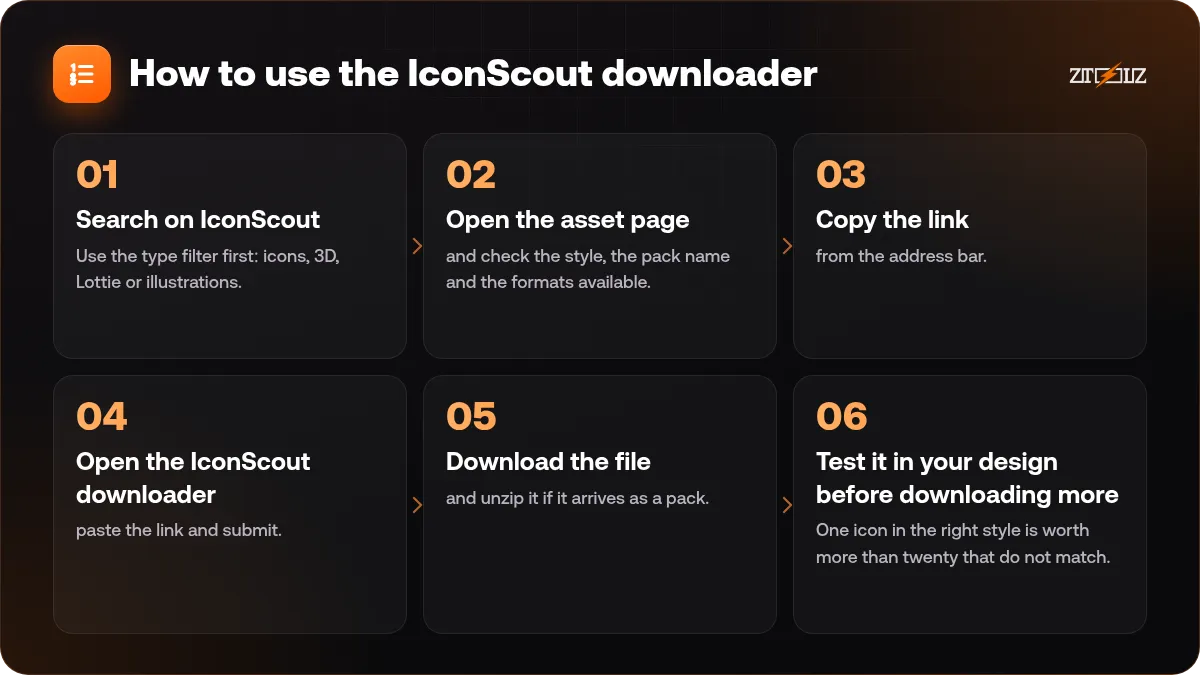
- Search on IconScout. Use the type filter first: icons, 3D, Lottie or illustrations. Then add a keyword such as payment, shopping cart or success.
- Open the asset page and check the style, the pack name and the formats available.
- Copy the link from the address bar.
- Open the IconScout downloader, paste the link and submit.
- Download the file and unzip it if it arrives as a pack.
- Test it in your design before downloading more. One icon in the right style is worth more than twenty that do not match.
If you prefer to explore the whole library freely, there is also IconScout access through the account opened with the extension, secure browser or cloud version.
How to keep an icon set consistent
The mistake that makes interfaces look amateur is mixing styles. Follow these rules.
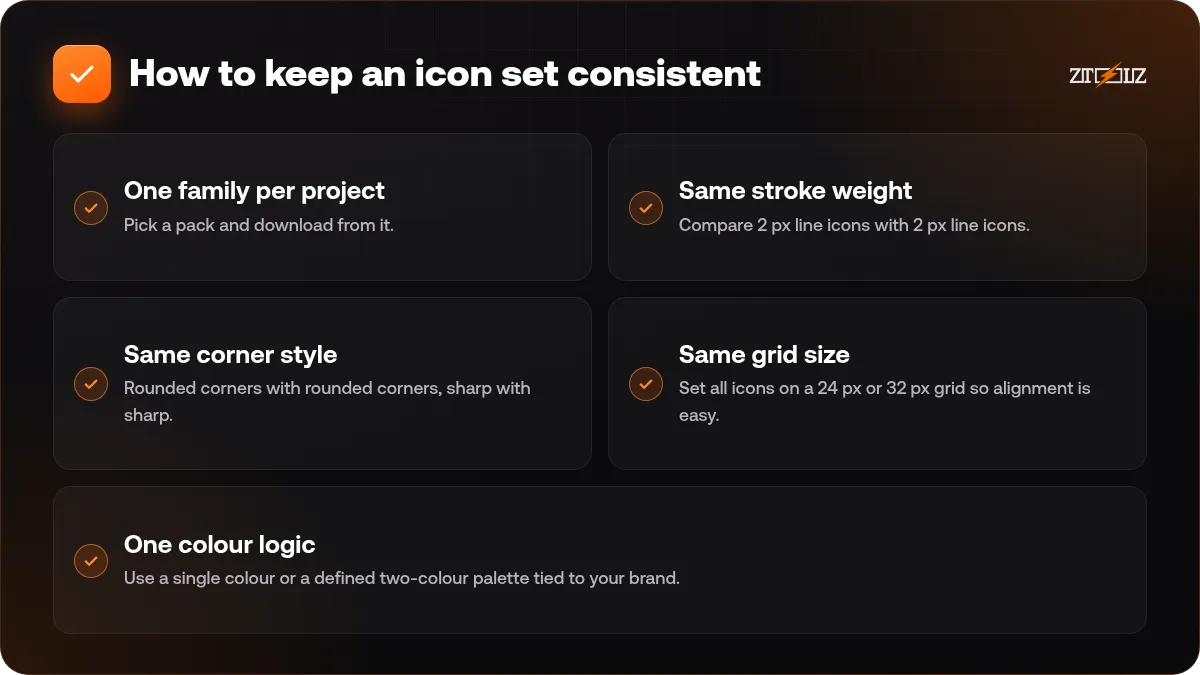
- One family per project. Pick a pack and download from it. If you need an icon the pack lacks, search for the same style tag, not just the same subject.
- Same stroke weight. Compare 2 px line icons with 2 px line icons. Do not mix thin and bold lines.
- Same corner style. Rounded corners with rounded corners, sharp with sharp.
- Same grid size. Set all icons on a 24 px or 32 px grid so alignment is easy.
- One colour logic. Use a single colour or a defined two-colour palette tied to your brand.
Using Lottie animations well
Lottie is easy to overuse. A few small animations make an interface feel alive; ten at once feel noisy.
- Use animation to explain: a checkmark after payment, a loader while data comes in, a gentle motion on an empty state.
- Keep loops short and calm. Aim for movement that supports the content, not competes with it.
- Respect users who prefer reduced motion. Provide a still version or pause the animation for them.
- Test the file size. A simple Lottie file is a few kilobytes; a complex one with many layers may be much larger.
- Match the animation colours to your brand before you ship it.
If you work on motion for video, our guide to Motion Array templates covers another approach to motion assets.
Using 3D illustrations in real layouts
3D art grabs attention but can look generic if used as decoration only. Use it where it helps a message: a hero section with a single strong object, a feature card with a recognisable concept, or a presentation title slide.
Keep a soft shadow, a consistent light direction and a limited colour palette. When your page already has photos, do not add 3D on top of them. Choose one visual language per page.
Licence and attribution
Each IconScout asset has licence terms that depend on the licence type and sometimes on the creator. Some assets need attribution, and some uses, such as selling the asset itself or building a competing library, are not allowed.
Check the licence on the asset page before you publish, and keep the asset or pack name with your project files. Do not redistribute the downloaded files as your own icon pack.
You can read more about the common terms in stock assets and licences explained.
Practical examples
A pricing page: use a line icon set for feature bullets, one 3D illustration for the hero, and a tiny Lottie checkmark for the confirmation state.
A pitch deck: use PNG icons from one pack on every slide, and a 3D object on the cover. No animations needed, so skip Lottie.
A mobile app onboarding: three Lottie files, one per screen, with the same palette and the same motion speed.
How ZTOOLZ fits in: ZTOOLZ offers shared access to IconScout through platform-owned accounts, as a downloader page where you paste a link, or as account access opened with the extension, secure browser or cloud version. It is not a personal subscription, and you should check each asset's licence for your project. Open the IconScout downloader to see our current price, or add it to a custom plan with the + button in the store.
FAQ
Can I download Lottie animations as JSON files?
Yes, Lottie assets are provided as JSON, and sometimes also in a compressed dotLottie format. You play them with a Lottie player library in a web page or app.
Should I use SVG or PNG for icons?
Use SVG when the icon will be resized or recoloured, as on websites and apps. Use PNG for quick placement in slides, documents and posts where you only need an image.
Can I change the colours of a downloaded icon?
With SVG, yes, in any vector editor or in code. With PNG, colour changes are limited. Lottie colours can be changed in Lottie editing tools.
Do I need attribution?
It depends on the asset licence. Check the asset page for attribution requirements, and keep the pack name so you can credit it if required.
Are the 3D illustrations good for printing?
They can be, if you download a high-resolution version. Check the pixel dimensions against your print size, and see our guide on print vs web files before sending to a printer.