iStock Downloader: How to Get Photos and Clips Fast
How the iStock downloader works: paste an asset link, get the full-quality photo or clip, and check the licence before you publish. A simple step-by-step guide.

An iStock downloader lets you paste the link of a photo, illustration or clip and receive the full-quality file, without opening a personal subscription on the stock site. On ZTOOLZ this works through dedicated downloader pages that run on platform-owned accounts. This guide explains how it works, how to find the right asset first, and what to check before you publish anything.
How does the iStock downloader work?
The idea is simple. You browse iStock like any visitor, find the asset you want, copy its page link, and paste it into the downloader. The downloader asks the platform account for that file and gives it back to you as a normal download.
You do not log in to iStock, and you never see the account behind the scenes. That is the point of shared access: one subscription is used by many customers through a controlled tool, instead of each person paying for a full plan they only use a few times a month.
There are two downloaders to know about. The iStock image downloader handles photos, illustrations and vectors. The iStock video downloader handles footage clips.
Step by step: from search to saved file
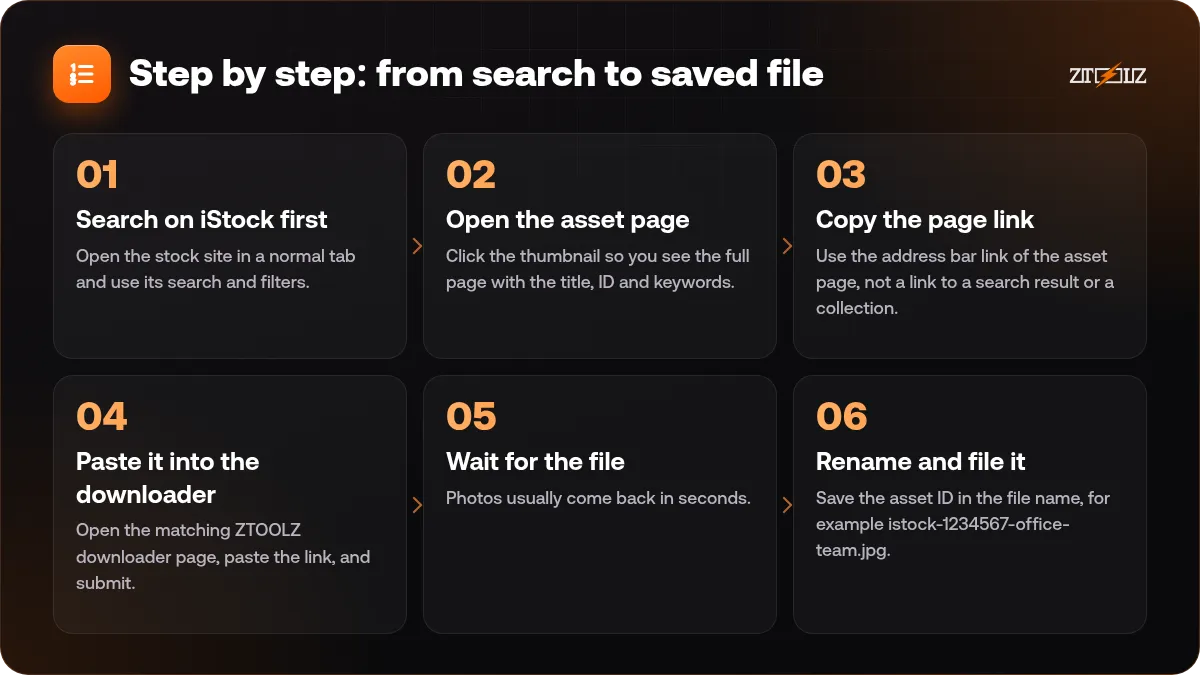
- Search on iStock first. Open the stock site in a normal tab and use its search and filters. Use the filters for orientation, colour and people, because they save more time than any keyword trick.
- Open the asset page. Click the thumbnail so you see the full page with the title, ID and keywords. Check that the preview really matches your idea before you copy anything.
- Copy the page link. Use the address bar link of the asset page, not a link to a search result or a collection.
- Paste it into the downloader. Open the matching ZTOOLZ downloader page, paste the link, and submit.
- Wait for the file. Photos usually come back in seconds. Video clips are larger, so give them a little longer and do not refresh the page.
- Rename and file it. Save the asset ID in the file name, for example istock-1234567-office-team.jpg. You will thank yourself later when a client asks where an image came from.
How to pick the right iStock asset
Good stock work starts before the download. A few habits make the difference between a design that looks bought and one that looks made for the brand.
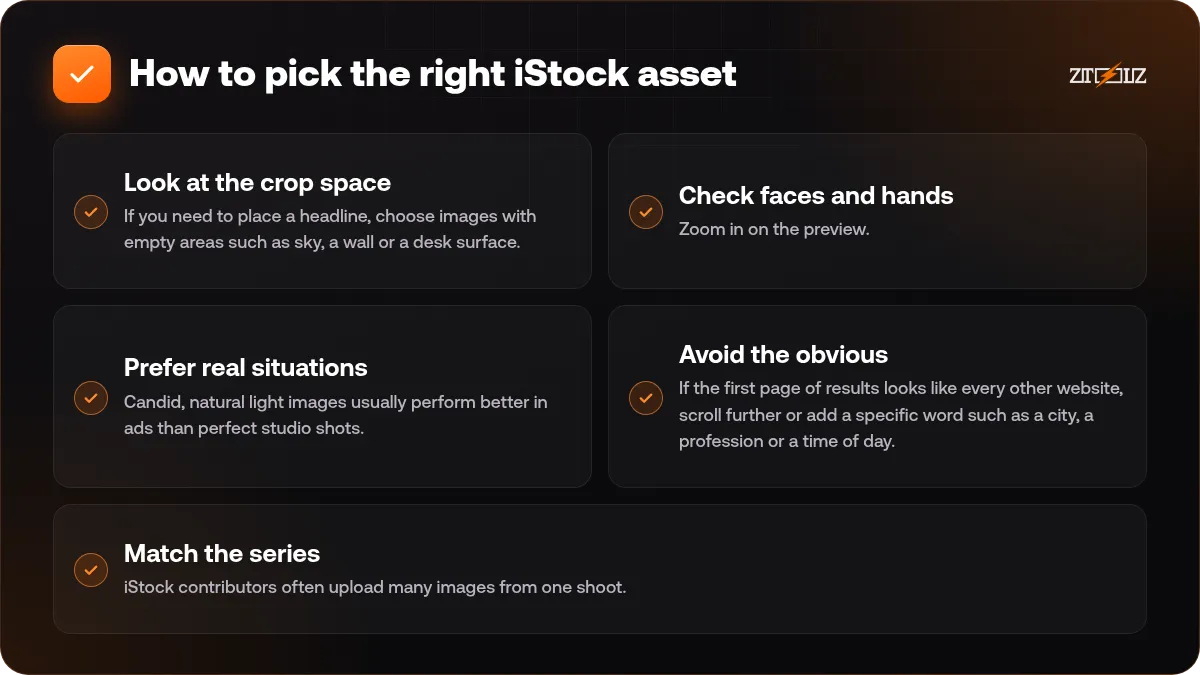
- Look at the crop space. If you need to place a headline, choose images with empty areas such as sky, a wall or a desk surface.
- Check faces and hands. Zoom in on the preview. Awkward hands and forced smiles are the most common reason a stock photo feels fake.
- Prefer real situations. Candid, natural light images usually perform better in ads than perfect studio shots.
- Avoid the obvious. If the first page of results looks like every other website, scroll further or add a specific word such as a city, a profession or a time of day.
- Match the series. iStock contributors often upload many images from one shoot. If you like one photo, open the contributor series so a whole page can share the same model and light.
iStock photos versus iStock video clips
Photos are fast to use and light to store. Clips need more planning. Before you download a clip, check its duration, frame rate and resolution on the asset page, and think about whether you really need the whole clip or only a few seconds.
For video work, remember that stock footage is usually shot to be neutral. A short clip placed under text, a lower third or a quick cut sequence works better than a long unbroken shot. If you are comparing sources for footage, our guide to the best stock video sites in 2026 shows how iStock sits next to the alternatives.
Resolution and file size
Download the largest version that makes sense for the job. A social post needs far less than a printed poster. If you do not know the final size, keep the biggest file in your archive and export smaller versions from it, instead of the other way round.
What to check about the licence
Downloading a file and being allowed to use it for a given purpose are two different questions. iStock content carries licence terms, and some content is marked editorial, which is meant for news and commentary and not for ads or product packaging.
Always read the licence terms shown for the asset and confirm they fit your project, especially for ads, resale products, merchandise or anything with a recognisable person or brand in it. When in doubt, choose a different image.
Our explainer on stock asset licences walks through the usual categories in plain language. Keep a short note of the asset ID, the date and where you used it. It takes ten seconds and protects you if a question comes up later.
Common mistakes to avoid
- Pasting the link of a search page instead of one asset page.
- Downloading the small preview image from the browser instead of using the downloader.
- Using editorial images in commercial designs.
- Forgetting to credit when a contributor or a project requires it.
- Choosing images with visible logos, tattoos or landmarks that cause trouble later.
- Downloading dozens of files you will never use. Make a short list first, then download only the finalists.
When another source may be better
iStock is strong for clean business, lifestyle and concept photography. For vectors, templates and fonts, a subscription library is usually more economical. For music and sound you need a different type of service altogether. If you want a quick comparison, read Adobe Stock vs iStock vs Shutterstock.
How ZTOOLZ fits in: ZTOOLZ gives you shared access to the iStock downloaders through platform-owned accounts, opened as simple downloader pages where you paste a link. It is shared access, not a personal account, and you should always check the content licence for your project. See the iStock image downloader and the iStock video downloader for our current price, or build a custom plan with the + button in the store.
FAQ
Do I need an iStock account to use the downloader?
No. You browse iStock as a visitor, copy the asset link and paste it into the ZTOOLZ downloader. The platform account does the rest, so you do not log in anywhere.
Can I download both photos and video clips?
Yes, with two different downloaders: one for images and illustrations, and one for video clips. Each has its own page, so use the one that matches the asset type.
Is the downloaded file the full-quality version?
The downloader returns the file from the platform subscription, normally in the high-quality version. Preview images from the website are low resolution and watermarked, which is why you should not save them directly.
Can I use the file in a client project?
That depends on the licence of the specific asset and on your project type. Read the licence terms for the asset and, if you are unsure, ask the client or pick another image.
What if the link does not work?
Check that you pasted the link to a single asset page and that the page opens normally in your browser. If it still fails, contact ZTOOLZ support with the link so the team can look at it.