Storyblocks Video Downloader: Find and Use Stock Footage
Storyblocks video downloader guide: how to find clips, paste the link, choose resolution and edit stock footage so it looks natural in your videos.
If you need background footage for a YouTube video, an ad or a client reel, a Storyblocks video downloader lets you paste a clip link and get the file without paying for a full personal plan. This guide shows how to search well, how the downloader and the account-based option differ, and how to edit stock footage so it does not look like stock.
What is Storyblocks and who uses it?
Storyblocks is a stock media library known for video footage, motion backgrounds, templates, audio and images. Video editors, YouTubers, marketing teams and educators use it for b-roll: the extra footage that covers a voiceover or breaks up talking-head shots.
The real value of b-roll is rhythm. A strong sequence of ten short clips can make an average script feel produced. That is why it pays to learn how to search for footage efficiently instead of scrolling randomly.
Two ways to use Storyblocks on ZTOOLZ
There are two options and they suit different habits.
- The Storyblocks downloader: you copy the link of a clip, paste it on the downloader page, and receive the file. Best when you already know the clip you want and need only a few per project.
- Storyblocks account access: shared access to the platform account, opened through the extension, the secure browser or the cloud version. Best when you want to explore the library freely, use filters and browse collections.
If you edit videos every week, the account option tends to make sense. If you edit now and then, the downloader is a lighter choice. Not sure? Read our guide on how to choose a tool subscription plan.
How to download a Storyblocks clip, step by step
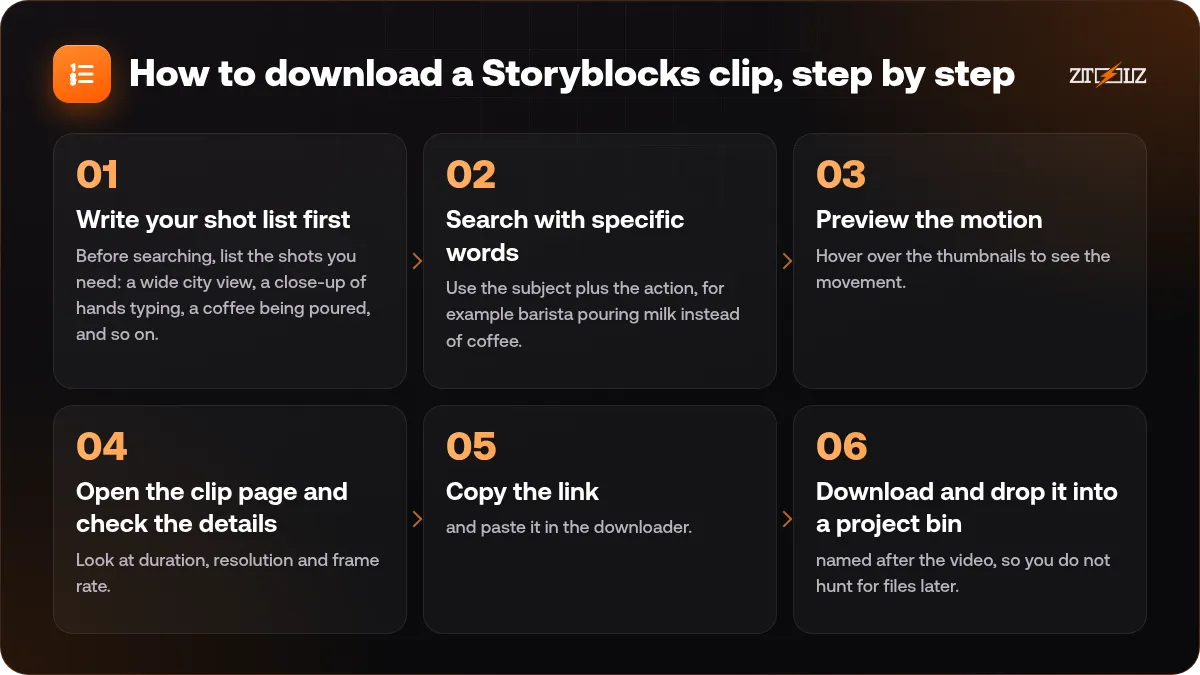
- Write your shot list first. Before searching, list the shots you need: a wide city view, a close-up of hands typing, a coffee being poured, and so on. This prevents the common trap of downloading pretty clips that do not fit the story.
- Search with specific words. Use the subject plus the action, for example barista pouring milk instead of coffee.
- Preview the motion. Hover over the thumbnails to see the movement. Skip clips with shaky motion or wobbly handheld work unless you want that look.
- Open the clip page and check the details. Look at duration, resolution and frame rate.
- Copy the link and paste it in the downloader.
- Download and drop it into a project bin named after the video, so you do not hunt for files later.
Choosing resolution and frame rate
Match the footage to your timeline, not to the biggest number available. If you edit in Full HD, a 4K clip gives you room to crop and reframe, which is useful for punch-ins and simulated camera moves. If you edit a vertical short, 4K helps you cut a vertical crop from a horizontal shot without losing sharpness.
Frame rate matters more than people think. Footage at 24 or 25 frames per second has the usual cinematic motion, while 50 or 60 frames per second can be slowed down smoothly. Mixing different frame rates in one timeline without care can cause stutter, so check your sequence settings.
File size and storage
High-resolution clips are heavy. Download the shortlisted clips only, keep them on a fast drive, and delete rejects after the project. A tidy folder structure saves more time than any plugin.
How to make stock footage look natural
Viewers recognise stock footage when it feels disconnected from the rest of the video. A few simple techniques fix that.
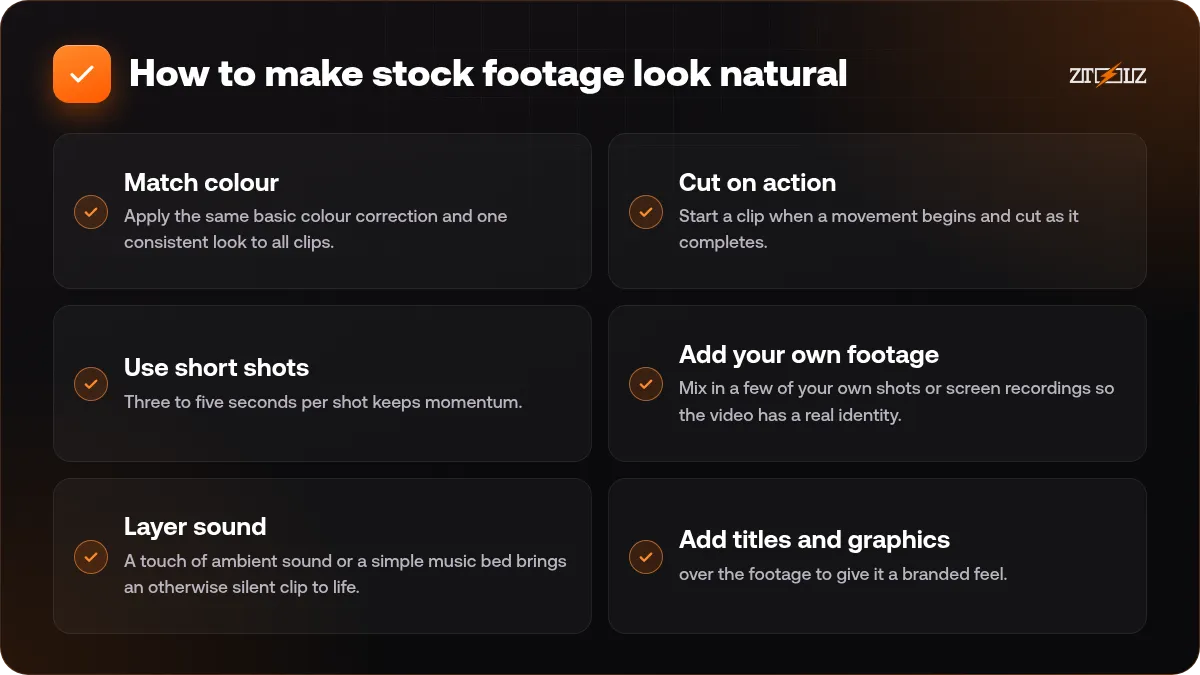
- Match colour. Apply the same basic colour correction and one consistent look to all clips. See our video colour grading basics.
- Cut on action. Start a clip when a movement begins and cut as it completes. The viewer's eye follows the motion.
- Use short shots. Three to five seconds per shot keeps momentum. Use longer shots only for emotional moments.
- Add your own footage. Mix in a few of your own shots or screen recordings so the video has a real identity.
- Layer sound. A touch of ambient sound or a simple music bed brings an otherwise silent clip to life.
- Add titles and graphics over the footage to give it a branded feel.
Storyblocks compared with other footage libraries
Every library has its own taste. Storyblocks is known for a broad catalogue of everyday scenes and motion backgrounds. If you work with templates and After Effects projects, you may prefer Motion Array; read Storyblocks vs Motion Array for the differences. For a wider survey of sources, see best stock video sites in 2026.
Licence and credit: check before you publish
Stock footage is licensed, not owned. The terms depend on the library and on the type of clip, and some footage has restrictions on how it can appear, for example with recognisable people, trademarks or sensitive topics.
Read the licence terms for each clip and keep a record of the clip ID, the date and the project. If a client will distribute the video widely, share the list of clips with them so everyone knows what is in it.
For a plain-language overview, read stock assets and licences explained.
Mistakes to avoid
- Downloading a hundred clips before the script is final.
- Choosing clips with a different look from each other: mixing warm cinematic shots with flat corporate ones.
- Using clips that contradict your message, for example a happy crowd in a video about a serious problem.
- Ignoring the audio. A clip may include sound you do not want.
- Not checking how a clip looks when cropped to vertical.
How ZTOOLZ fits in: ZTOOLZ gives shared access to Storyblocks in two ways: a downloader page where you paste a clip link, and account access opened through the extension, secure browser or cloud version. Both run on platform-owned accounts, not a personal subscription, so remember to check the clip licence for your project and avoid changing any account settings. See the Storyblocks downloader or Storyblocks access for our current prices, or combine it with other tools in a custom plan from the store.
FAQ
Can I download 4K clips with the Storyblocks downloader?
The available resolutions depend on what the clip itself offers on the library. Check the clip page for the maximum size and download the version that fits your timeline.
What is the difference between the downloader and account access?
The downloader is for pasting a link and getting a file. Account access lets you browse and use the library interface yourself through a controlled session. Choose the one that matches how you work.
Can I use the clips in YouTube videos?
Usually stock footage can appear in online videos, but the exact permission depends on the licence. Read the terms for your clip type, and keep the clip ID for your records.
Why does my clip stutter in the editor?
Most often it is a frame rate mismatch or a heavy codec on a slow drive. Match the sequence settings to the footage or create proxies for smoother editing.
How many clips should I use in a one-minute video?
There is no rule, but ten to fifteen short shots is typical for a fast-paced one-minute video. Slower, calmer videos may use fewer and longer shots.