InVideo AI Guide: Text to Video Workflow and Limits
InVideo AI guide: write a prompt, review the script, swap media, change the voiceover and edit with text commands. Includes honest limits and better results.
InVideo AI turns a written idea into a complete video: it drafts a script, picks stock footage, adds a voiceover, music and subtitles, and lets you change things by typing instructions. It is very useful for explainers, product videos and short social clips, and less useful when you need exact control over every frame. This guide shows a workflow that gives better results and the limits to expect.
How does InVideo AI work?
You describe the video in a text box: topic, audience, platform, length and tone. The tool writes a script, divides it into scenes, matches each scene with stock clips or images, generates a voiceover and assembles a first version. You then review it in an editor and ask for changes, either with prompts such as "make the intro shorter" or by editing scenes manually.
It is a first-draft machine. Done well, the draft is already 70 percent of the work. Done carelessly, you get a generic video that looks like a thousand others.
What makes a good prompt?
The prompt is where most of the quality comes from. Include these five items:
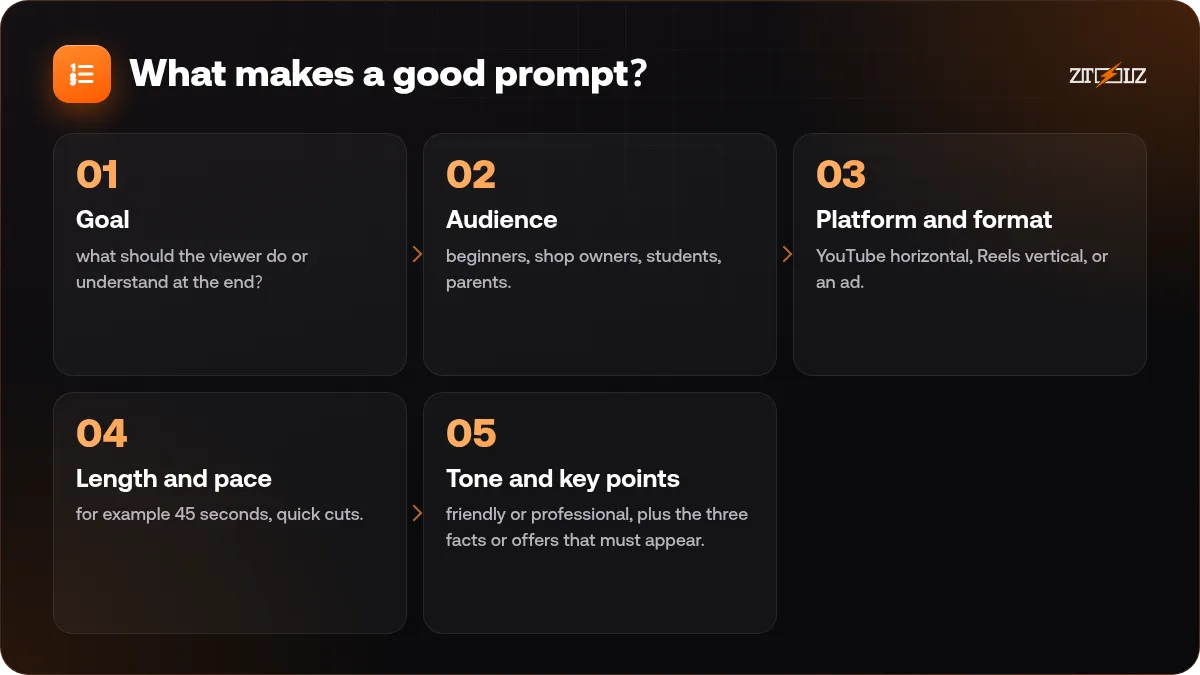
- Goal: what should the viewer do or understand at the end?
- Audience: beginners, shop owners, students, parents.
- Platform and format: YouTube horizontal, Reels vertical, or an ad.
- Length and pace: for example 45 seconds, quick cuts.
- Tone and key points: friendly or professional, plus the three facts or offers that must appear.
Example: "A 45-second vertical video for small shop owners explaining three ways to answer customer messages faster. Friendly tone, simple language, end with the call to follow for more tips." That gives the tool far more to work with than "make a video about customer service".
Paste your own bullet points or a rough script into the prompt. Starting from your real content removes most of the generic filler.
A workflow that improves results
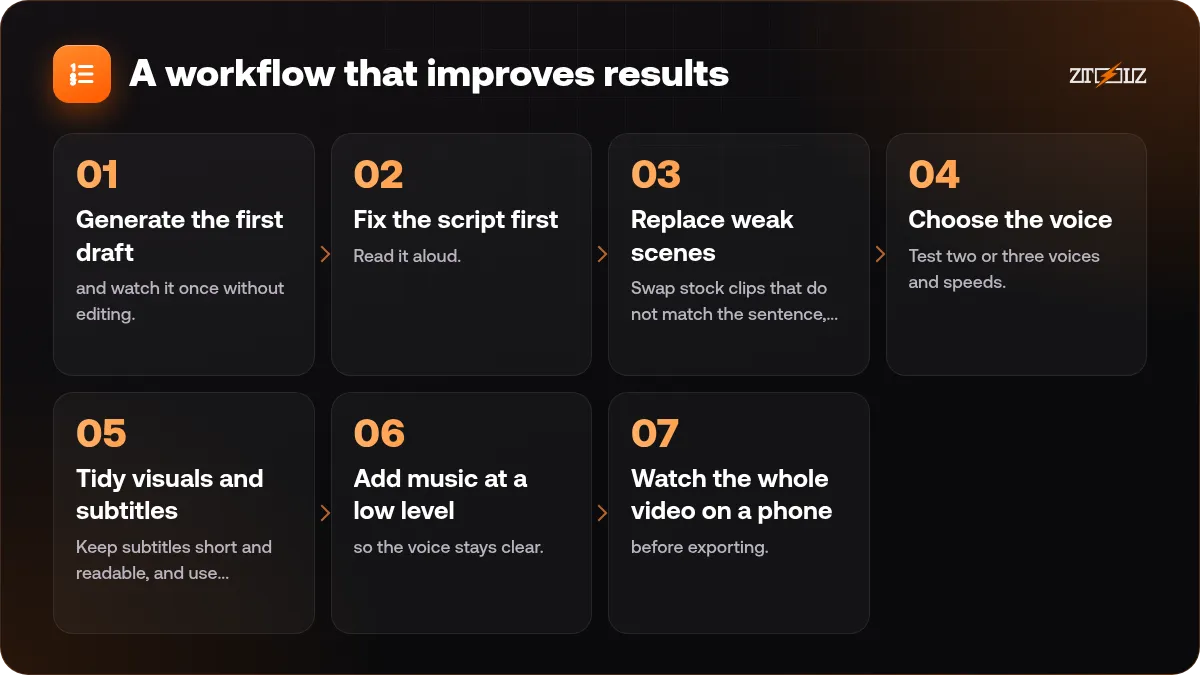
- Generate the first draft and watch it once without editing.
- Fix the script first. Read it aloud. Remove vague sentences, correct any claim you cannot support, and make the first sentence a hook.
- Replace weak scenes. Swap stock clips that do not match the sentence, or upload your own screen recordings, product shots and logo.
- Choose the voice. Test two or three voices and speeds. A good voice carries a simple video.
- Tidy visuals and subtitles. Keep subtitles short and readable, and use consistent fonts and colours.
- Add music at a low level so the voice stays clear.
- Watch the whole video on a phone before exporting.
Where does InVideo AI work well?
- Explainer and educational shorts: tips, how-tos, listicles and simple tutorials.
- Product and promo videos: short ads that combine your product shots with generic supporting footage.
- Faceless channels and content ideas: topic videos with voiceover. If you are thinking about this, read our guide to faceless YouTube channels.
- Social content at volume: turning one idea into several clips in different formats.
- Quick drafts for clients: to show a direction before a full edit.
What are the honest limits?
- Generic stock footage. Matching clips are not always accurate, and many videos use similar libraries. Add your own media wherever it matters.
- Script accuracy. AI scripts can contain wrong or invented facts. Check every number, name and claim before publishing.
- Voice and language. Voice quality and pronunciation vary by language and by voice. Always listen to the whole voiceover, particularly for Arabic names and technical words. Our Arabic AI voiceover guide helps if you want a separate, higher-quality voice.
- Limited fine control. Precise timing, complex animation and exact brand design are easier in a full editor.
- Repeated style. If everything is generated, the result can feel templated. Brand it with your own intro, colours and logo.
A sample 60-second structure
- 0 to 5 seconds: a hook that names the problem or promise.
- 5 to 20 seconds: the context, in one or two short sentences.
- 20 to 50 seconds: three clear points, one scene each.
- 50 to 60 seconds: a recap and one call to action.
Tell the tool this structure in your prompt and the draft will follow it closely, which makes later editing much faster.
Editing with commands: what to ask for
Instruction-style editing saves clicks when you are specific. Useful commands: shorten a scene, change the tone of the script, replace a clip with a different type of footage, make the hook stronger, add a call to action at the end, or change the voice speed. Avoid broad commands such as "make it better". Ask for one clear change at a time, then check it.
Rights, disclosure and quality checks
Check the licence terms for stock media and music for your type of project, especially for client work and ads. If your video uses an AI voice or heavily generated visuals, be transparent where platforms or local rules ask for it, and never present generated content as real events. Before exporting, run this quick checklist: facts verified, spelling correct in subtitles, music not louder than voice, brand logo present, and call to action clear.
If you are new to video production in general, our beginner overview of video tools from editing to AI voiceover fits well alongside this guide.
Using InVideo through ZTOOLZ
ZTOOLZ offers shared access to InVideo through accounts owned and managed by the platform, so you do not buy a separate personal plan. It is opened from the tool page, with the extension or the cloud version in your browser. See InVideo Pro and InVideo AI cloud for how they open and our current price. Add it to a custom plan with the + button in the store, or check All In One on pricing if you use more video and AI tools. Because the account is shared, do not change its settings, and avoid saving personal files or private projects inside it.
FAQ
Can InVideo AI make a video from just a topic?
Yes. Type a topic with the audience, platform and length, and it drafts a script, scenes, voiceover and music. Giving more detail produces a much better draft.
Can I use my own footage and logo?
Yes. You can upload your own clips, images and brand elements and place them in scenes. Doing this makes the video far less generic.
Are the facts in AI scripts reliable?
Not always. Treat the script as a draft, and verify every statistic, name and claim before publishing.
Does it work well in Arabic?
It can, but quality varies with the voice and the text. Listen to the full voiceover, check subtitle spelling and fix names or terms that are mispronounced.
Is it a replacement for a video editor?
It is a fast way to create a first version, but detailed timing, custom animation and precise brand design are better in an editor such as Premiere Pro, DaVinci Resolve or CapCut.