Leonardo AI Guide: Models, Presets and Consistent Characters
Leonardo AI guide step by step: choose a model, use presets, turn images into new images, edit on the canvas and keep a character consistent.
Leonardo AI is an image generation platform that gives you more than a prompt box: you choose models, apply style presets, guide results with reference images, edit on a canvas and even keep characters consistent between images. This Leonardo AI guide walks you through the workflow step by step, so you can move from random results to images you can actually use.
What is Leonardo AI good for?
Leonardo is popular with designers, game artists, marketers and small business owners because it blends creative freedom with practical tools. Typical uses include social media visuals, concept art, product mockups, book and game illustrations, backgrounds, textures and thumbnails.
Compared with a simple generator, it behaves like a small studio: models for different looks, a gallery of your work, editing tools and upscaling. If you are still choosing between generators, read Midjourney vs Leonardo vs Ideogram and best AI image generators.
Step 1: choose the right model
Leonardo offers several base models and fine-tuned models. Names and availability change, so treat this as a decision logic, not a fixed list:
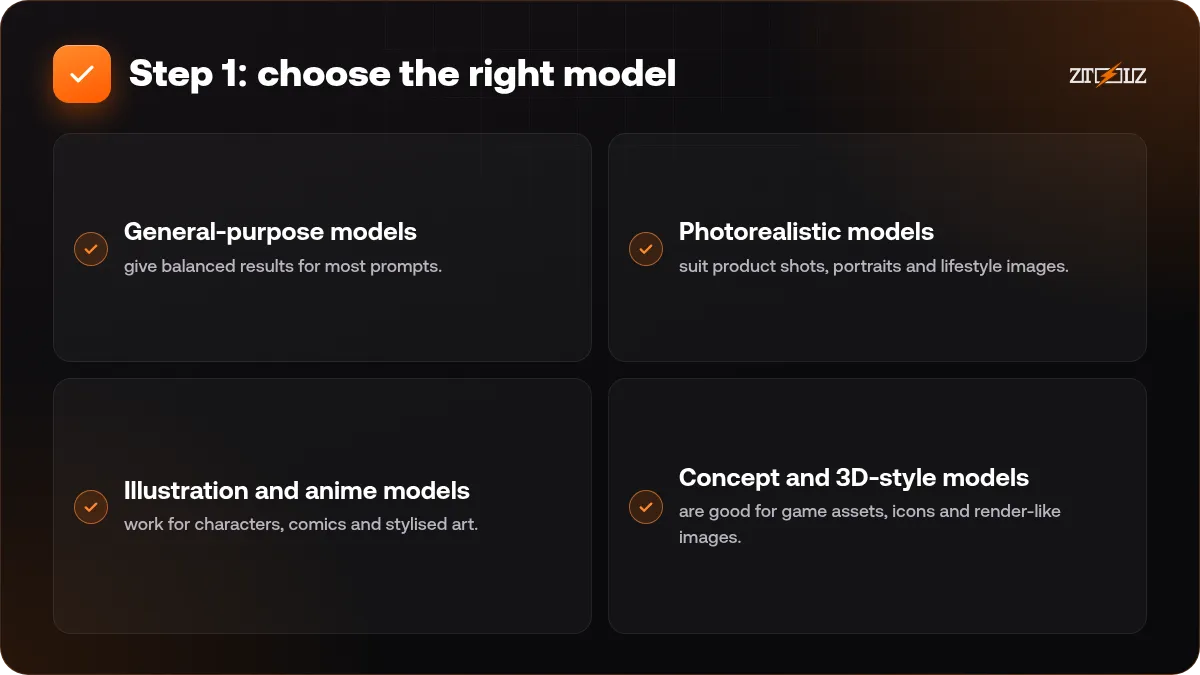
- General-purpose models give balanced results for most prompts. Start here.
- Photorealistic models suit product shots, portraits and lifestyle images.
- Illustration and anime models work for characters, comics and stylised art.
- Concept and 3D-style models are good for game assets, icons and render-like images.
Generate the same prompt on two or three models and compare. Often the right model matters more than a longer prompt.
Step 2: write a prompt with a clear structure
Use this order: subject, action, setting, style, lighting, camera or composition, and a mood. Example: "a young barista holding a glass of iced coffee, smiling, in a bright modern cafe in Dubai, soft morning light, shallow depth of field, lifestyle photography, warm tones".
Add a negative prompt to remove what you do not want, for example "blurry, extra fingers, distorted text, low quality". If you want ready-to-use prompt patterns, see 10 ready prompts for professional AI images.
Step 3: use presets and styles
Presets are style shortcuts that apply a general look, such as cinematic, illustration, portrait or graphic design. They save you from writing long style descriptions. The best approach is to use one preset at a time, change a single setting between generations and keep notes about what worked.
Also play with aspect ratio. Square for a profile post, 4:5 for feed posts, 9:16 for stories and Reels, 16:9 for thumbnails and covers. Choosing the final format before you generate saves cropping later.
Step 4: image to image and reference guidance
One of Leonardo's strengths is guidance from existing images. You can upload a sketch, a photo or a previous result and tell the model to follow its structure, pose, style or content.
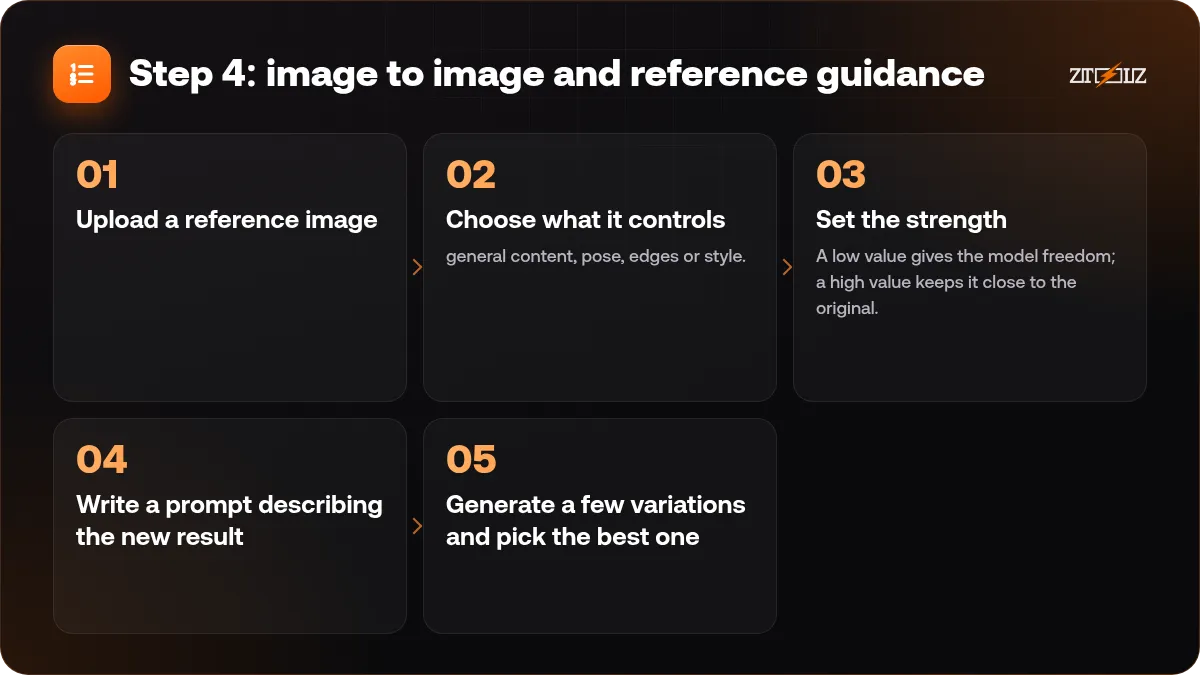
- Upload a reference image.
- Choose what it controls: general content, pose, edges or style.
- Set the strength. A low value gives the model freedom; a high value keeps it close to the original.
- Write a prompt describing the new result.
- Generate a few variations and pick the best one.
This is how you turn a rough layout into a polished visual or keep a brand look across different images.
Step 5: edit on the canvas
The canvas is an editor for fixing and extending images. Typical actions:
- Inpainting: mask an area and describe what should appear there, for example removing an object or changing clothing colour.
- Outpainting: extend the image beyond its borders to change the aspect ratio or add more background.
- Erasing and touch-ups: clean small artefacts, fix hands or smooth edges.
Work in small steps, mask a little more than the problem area and keep the prompt short and specific for each edit. After editing, upscale the final image for sharper details. For more on enhancing images, see improve image quality, remove background, upscale, vectorize.
Step 6: keep a character consistent
Consistent characters are essential for stories, comics, brand mascots and social series. Leonardo provides character reference features that let you use an image of a character as the guide for new scenes.
- Generate or upload one clear image of the character, ideally a front view with a simple background.
- Use it as a character reference when generating new scenes.
- Keep the key description constant: hair, clothes, colours and age.
- Change only the scene: location, action and lighting.
- Save the best prompt and settings as your character sheet.
Expect small differences, and fix them with the canvas rather than regenerating everything.
Make a character sheet once: front, side and three expressions. Use it as your reference for every new image of that character.
Text, logos and Arabic typography
Image models still struggle with long text, and Arabic in particular can come out with broken letters. Generate the image without text, then add words in a design tool where you control the font. For text-heavy designs, a model built for lettering may help, as explained in Arabic text in AI designs.
Credits, licences and responsible use
Leonardo works on a credit system: higher quality settings, larger sizes and extra features use more credits, so test at low settings first. Check the platform's terms for what you may do with generated images in client and commercial projects, and avoid generating real people's faces or copyrighted characters for commercial use.
Leonardo AI on ZTOOLZ: we offer shared access to Leonardo AI through accounts owned by the platform, opened in the browser through the cloud version or the ZTOOLZ extension. Because the account is shared, your gallery may be visible to other users, so download your results and avoid uploading private or client photos. See the Leonardo AI tool page and the cloud version page for our current price, or add it to a custom plan with the "+" button in the store. The payment methods available in your country appear at checkout.
FAQ
Is Leonardo AI better than Midjourney?
They have different strengths. Leonardo offers more control and editing tools in one place, while Midjourney is known for artistic default results. Test both with your own prompts.
How do I get the same character in different images?
Use a clear reference image of the character, keep the description consistent and change only the scene. Fix small differences with the canvas editor.
Can Leonardo AI edit my own photos?
Yes, you can upload images for guidance and edit them on the canvas. Avoid uploading private photos on a shared account.
Why do my hands and faces look wrong?
It is a common weakness of image models. Use a negative prompt, try another model, and repair the area on the canvas with a small mask.
Can I use generated images commercially?
That depends on the platform's terms and your plan. Read the current terms before using images in client or commercial work.