Vectorizer AI Guide: Convert PNG and JPG to SVG
Vectorizer AI guide: turn a PNG or JPG into clean SVG for print, vinyl and logos. Best source images, key settings, cleanup steps and common mistakes.

Vectorizer AI converts a pixel image (PNG or JPG) into a vector file such as SVG, PDF or EPS, so it stays sharp at any size. It works best on logos, icons, flat illustrations and simple artwork, and it needs little setup. This guide covers how to prepare the image, which settings to adjust, and how to clean the result so it is ready for print, vinyl cutting or web.
What does vectorizing an image actually do?
A PNG or JPG is a grid of coloured dots. Enlarge it and the edges blur. A vector is a set of shapes described by points and curves, so it can be scaled from a favicon to a billboard with no loss. Vectorizing means detecting those shapes in a pixel image and rebuilding them as curves.
Older "auto trace" tools often produced lumpy outlines with hundreds of useless points. Vectorizer AI is built to find clean shapes, smooth curves and straight lines where the artwork has them, which is why logos usually come out close to hand-drawn quality. It is still a tool, not a magician: a poor source gives a poor vector.
Which images vectorize well and which do not?
- Good candidates: logos, icons, badges, text-based graphics, flat illustrations, stamps, signatures and line art with solid colours.
- Acceptable with care: cartoon characters, stickers and posters with a limited palette.
- Poor candidates: photographs, soft gradients, glows, heavy textures and noisy AI images. The result becomes a huge file of thousands of tiny shapes that is not really useful.
If you have a blurry logo, enlarge it first with a careful upscale, or redraw the weakest part. Our Magnific upscaler guide explains how to do that without changing the design.
How to prepare the source image
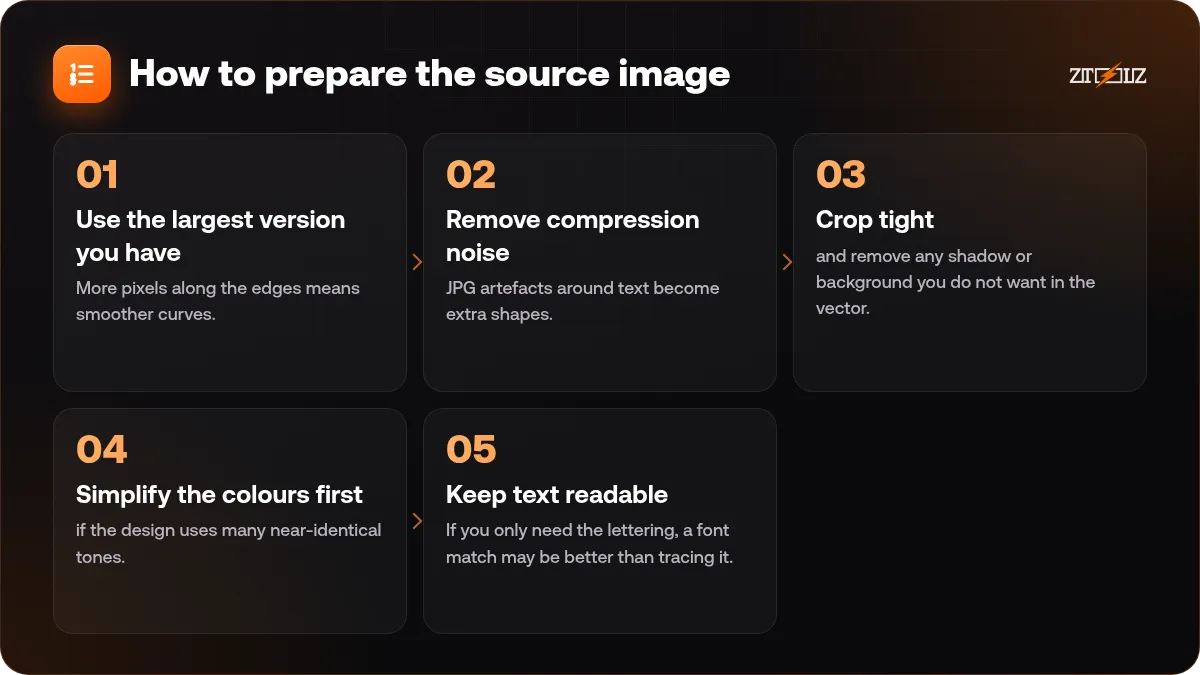
- Use the largest version you have. More pixels along the edges means smoother curves.
- Remove compression noise. JPG artefacts around text become extra shapes. A PNG export is better.
- Crop tight and remove any shadow or background you do not want in the vector.
- Simplify the colours first if the design uses many near-identical tones. Clean flat colours vectorize far better than blends.
- Keep text readable. If you only need the lettering, a font match may be better than tracing it.
Which settings should you adjust?
Names and positions may change, so look inside the tool, but these are the choices that matter.
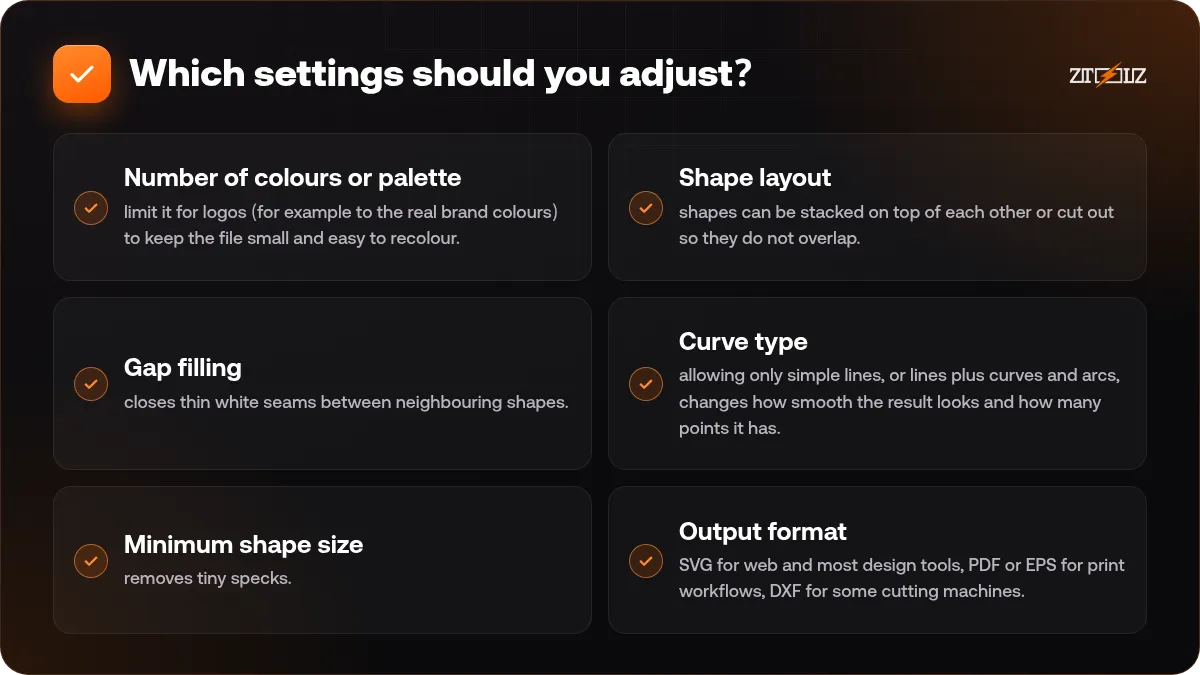
- Number of colours or palette: limit it for logos (for example to the real brand colours) to keep the file small and easy to recolour. Allow more colours for illustrations.
- Shape layout: shapes can be stacked on top of each other or cut out so they do not overlap. Stacked is easier to edit in a design program, while cut-out shapes are better for vinyl and laser cutting where overlaps cause trouble.
- Gap filling: closes thin white seams between neighbouring shapes. Useful for stickers and screen printing.
- Curve type: allowing only simple lines, or lines plus curves and arcs, changes how smooth the result looks and how many points it has.
- Minimum shape size: removes tiny specks. Raise it to clean noise, but not so far that it deletes real details such as dots in letters.
- Output format: SVG for web and most design tools, PDF or EPS for print workflows, DXF for some cutting machines. Pick the one your next program asks for.
A cleanup checklist after conversion
- Open the result in your vector editor and switch to outline view to see stray shapes.
- Delete leftover background rectangles and tiny specks.
- Check overlapping shapes and group by colour if you plan to recolour.
- Compare against the original at large zoom, especially letters, thin lines and sharp corners.
- Replace colours with exact brand values where needed.
- Save a layered master file and a clean exported copy for each use.
For vinyl or laser cutting, always do a small test cut. A shape that looks fine on screen can be too thin or too close to its neighbour for the blade.
Where vectors help your business
Print shops and sign makers need vector files for banners, signs and large stickers. Merchants use SVG logos and icons in store themes because they load fast and look sharp on every screen. Freelance designers use vectorizing to rebuild a client's old logo that only exists as a low-resolution image, which is a common starting job. If you work that way, read our guide to print versus web design files and the overview of AI logo design.
Common mistakes
- Vectorizing a photo and expecting a clean logo.
- Using a tiny screenshot as the source.
- Keeping hundreds of colours that differ by a hair.
- Sending an unedited trace to a client as a finished logo, without checking spacing and alignment.
- Tracing someone else's logo or artwork and using it as your own. Respect trademarks and the licence of any source.
Using Vectorizer AI through ZTOOLZ
ZTOOLZ offers shared access to Vectorizer AI through platform-owned accounts, so you do not need your own subscription. It is opened from its tool page, either with the extension flow or in the cloud version in your browser. Start with the Vectorizer AI page or the cloud version to see how it opens and our current price. You can add it to a custom plan using the + button in the store, or choose All In One from pricing if you also use other design tools. Shared accounts work best when you do not change their settings and do not store personal data in them.
FAQ
What is the difference between vector and raster images?
Raster images (PNG, JPG) are made of pixels and lose sharpness when enlarged. Vector images (SVG, PDF, EPS) are made of mathematical shapes and stay sharp at any size.
Can I vectorize a photo?
You can, but the result is usually a heavy file of many small shapes that looks like a painting. Vectorizing is meant for logos, icons and flat artwork, not photographs.
Which format should I export?
Use SVG for websites and most design programs, and PDF or EPS if a printer asks for them. Some cutting machines use DXF, so check what your machine accepts.
Why does my vector look different from the original?
The source was probably small, noisy or full of similar colours. Use a bigger and cleaner source, reduce the colours, and raise the minimum shape size slightly to remove specks.
Can I edit the result in Illustrator or Inkscape?
Yes. SVG and EPS files open in common vector editors, where you can move points, recolour shapes and group elements.
Is it allowed to vectorize any logo?
Only artwork you own or have permission to use. Tracing another brand's logo can break trademark and copyright rules, so check the rights before you start.