How to Make a Presentation with AI: Clear Slides in Less Time
Make a presentation with AI in less time: outline with ChatGPT or Gemini, design with Slidesgo or Canva, get Arabic right-to-left slides right and rehearse with feedback.
To make a presentation with AI quickly, use the AI for the parts that slow you down, such as the outline, slide wording, speaker notes and practice questions, and keep the decisions about message and evidence for yourself. A chat assistant drafts the structure in minutes, a template library gives you a professional design, and you spend your time on what matters: a clear story. This guide works for university projects, formal meetings and client pitches, in English or Arabic.
Before you make a presentation with AI: what can it actually do?
AI is a strong assistant, not a presenter. Used well, it saves hours on the following:
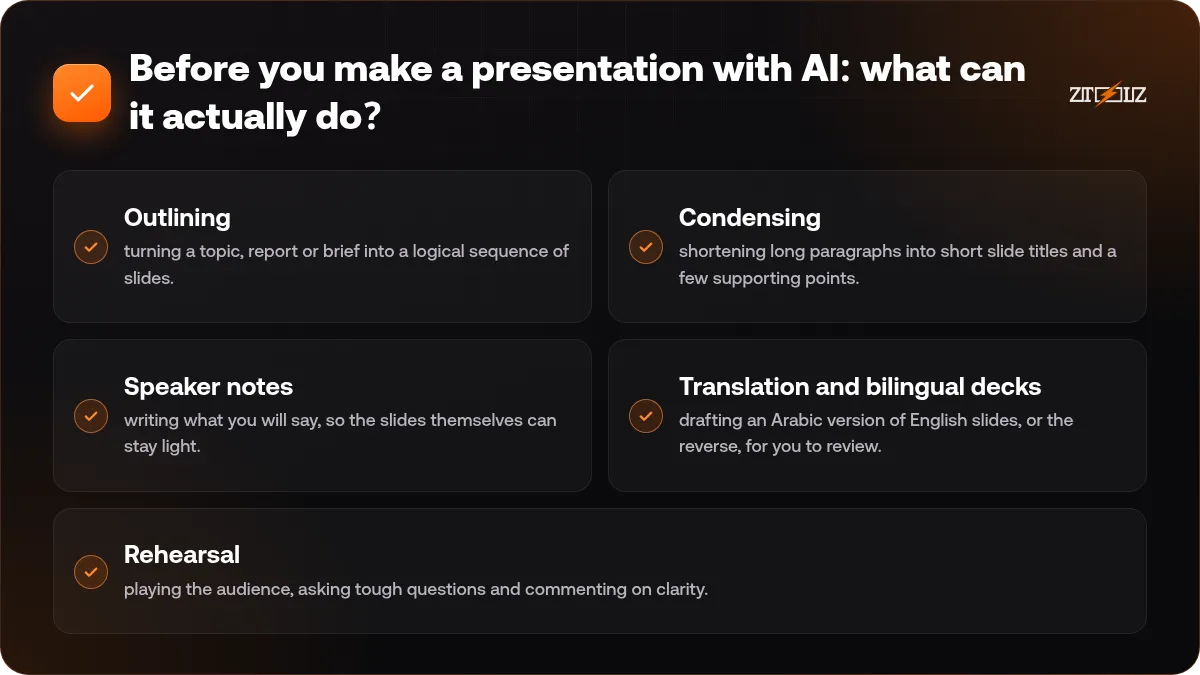
- Outlining: turning a topic, report or brief into a logical sequence of slides.
- Condensing: shortening long paragraphs into short slide titles and a few supporting points.
- Speaker notes: writing what you will say, so the slides themselves can stay light.
- Translation and bilingual decks: drafting an Arabic version of English slides, or the reverse, for you to review.
- Rehearsal: playing the audience, asking tough questions and commenting on clarity.
What AI does poorly: knowing your audience, checking facts and numbers, and deciding what to leave out. Those stay with you.
Step 1: Build the outline with AI
Start with three facts: who the audience is, what you want them to do or decide after the talk, and how long you have. Then ask a chat assistant such as ChatGPT or Gemini:
I am presenting to [audience] for [10] minutes. My goal is [decision or action]. Create an outline of about [10] slides. For each slide give a title written as a short message, two or three supporting points and a suggested visual. Here is my material: ...
Notice the request for titles written as messages. "Delivery times fell after the new routing system" tells the audience far more than "Results". If your material is a long report or PDF, ask the AI to summarise it first; our guide to analysing long documents with AI shows how.
A simple structure that fits most talks
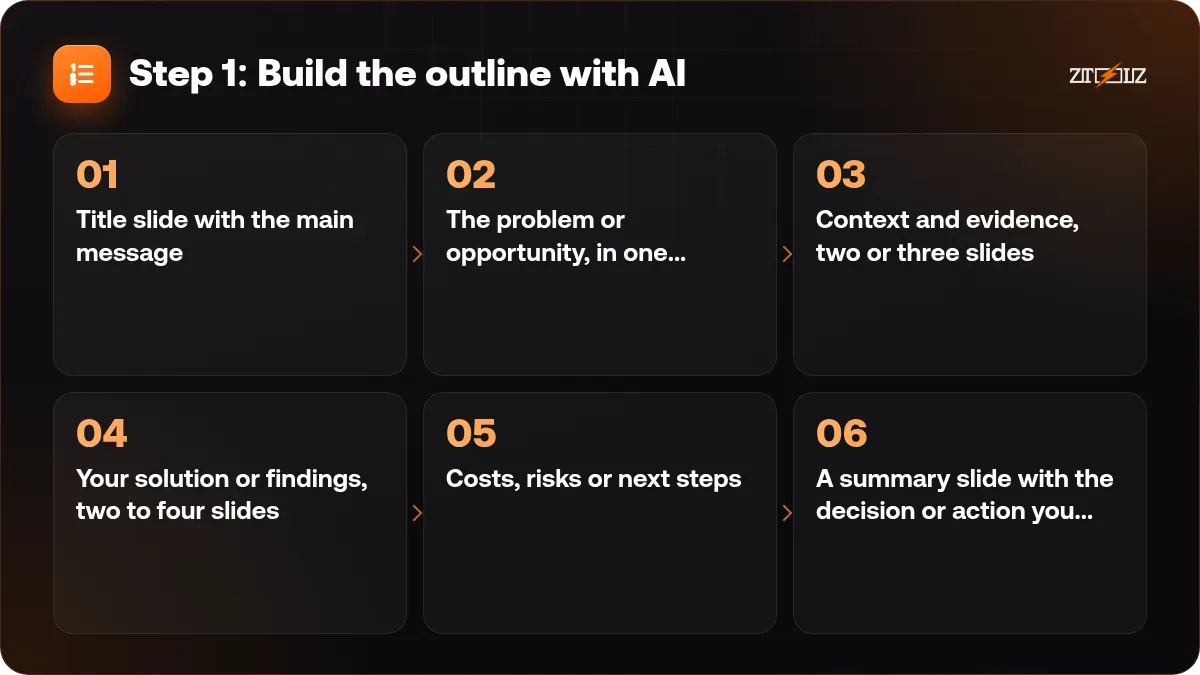
- Title slide with the main message.
- The problem or opportunity, in one sentence.
- Context and evidence, two or three slides.
- Your solution or findings, two to four slides.
- Costs, risks or next steps.
- A summary slide with the decision or action you want.
Step 2: One idea per slide
The most common problem in student and corporate decks is not design, it is too much text. Apply these rules to whatever the AI drafts:
- One message per slide, stated in the title.
- No more than three or four short points, and often none: a chart or photo can carry the slide.
- Move explanations into the speaker notes.
- Use real numbers from your sources, and check every figure the AI writes.
A quick prompt helps here: "Shorten each slide to a title of up to 10 words and three bullets of up to 8 words. Put the rest in speaker notes."
Step 3: Choose a template and design
You do not need to design from scratch. Two good starting points:
- Slidesgo has a large library of presentation themes for Google Slides and PowerPoint, sorted by topic and style, from academic and medical to business and creative.
- Canva Pro lets you design, present directly from the browser and download the deck in common formats, with brand kits, a large media library and easy resizing.
Pick a template that matches the setting. University and formal meetings suit calm, clean themes with plenty of white space. Client pitches can be bolder, but readable text matters more than decoration. If an organisation gives you its own template, use it.
Delete the template slides you do not need before adding content. A focused 12-slide deck looks more professional than 30 half-filled slides.
Visuals that help
- Simple charts with one highlighted bar or line rather than full spreadsheets.
- Real photos of your product, site or team when you have them.
- Icons used consistently, all from one style.
- Diagrams for processes: three to five steps, not twenty.
For colour and font choices, our colour and typography basics cover the essentials in a few minutes.
How do you make Arabic right-to-left slides look right?
Arabic decks are common in Saudi Arabia, the UAE and across the Gulf, especially for government-related meetings and many university courses. Templates are usually designed left to right, so a few adjustments make a big difference:
- Use fonts that support Arabic properly, such as Cairo, Tajawal or Noto Naskh Arabic. A font without Arabic support may fall back to something that does not match your design.
- Set the text direction, not just the alignment. In PowerPoint and Google Slides, use the right-to-left paragraph direction option (in Google Slides it appears once an RTL language is enabled in your settings). Right alignment alone can leave punctuation at the wrong end.
- Mirror the layout. Arabic readers start on the right, so put the title and main text on the right and images on the left. Timelines and process arrows should flow from right to left.
- Handle mixed English terms carefully. A Latin word or number inside an Arabic sentence can shift the order of nearby words and punctuation. Check every slide where you mix languages, and place long English terms on their own line if needed.
- Keep numbers consistent across the deck, whichever digit style you use.
- Allow more room. Arabic text often needs larger sizes and more line spacing to stay readable.
For bilingual meetings, some presenters put Arabic and English on the same slide; others prepare two versions. Two versions usually look cleaner and are easier to read from the back of the room.
Step 4: Rehearse with AI feedback
A clear deck still needs a confident delivery. Paste your speaker notes into the assistant and ask:
Here are my speaker notes for a 10-minute talk. Estimate the speaking time, point out parts that are unclear or too long, and suggest a stronger opening sentence. Then ask me five questions the audience is likely to ask.
Practise out loud at least twice. A rough guide is that many people speak at around 120 to 150 words per minute, so long notes mean a rushed talk. Prepare short answers to the likely questions, and keep a backup slide or two with extra data. If you are a student, our article on AI tools for students has more ideas for study and assignments.
Mistakes to avoid
- Accepting AI-generated facts, statistics or references without checking the original source.
- Reading the slides word for word to the audience.
- Mixing many fonts, colours and animation styles in one deck.
- Arabic slides with left-aligned text, broken letters or reversed punctuation.
- Pasting confidential company or client data into AI tools without permission.
- Skipping a final check on the actual screen or projector you will use.
Universities and employers may have their own rules on using AI for assignments and documents, so check them and be ready to say how you used it.
Want the full toolkit for your next deck? ZTOOLZ offers shared access to Slidesgo, Canva Pro, ChatGPT and Gemini through accounts owned by the platform. Depending on the tool, you open it with the ZTOOLZ Chrome extension, the secure browser app or a cloud version in your browser. Add only the tools you need to one custom plan with the + button in the store, or compare the All In One options on pricing. Each tool page shows the current price in your local currency.
FAQ
Can AI make a whole presentation for me?
AI can draft an outline, slide text and speaker notes in minutes, and some design tools can generate a first layout. You still need to check facts, cut unnecessary text and adjust the story for your audience, because that is what makes a presentation convincing.
How many slides should a 10-minute presentation have?
There is no fixed rule, but around 8 to 12 slides works for many talks. Focus on one idea per slide and leave time for questions rather than aiming for a number.
Which fonts work best for Arabic slides?
Choose fonts with full Arabic support, such as Cairo, Tajawal or Noto Naskh Arabic, and use a larger size than you would for English. Stick to one Arabic font and one Latin font throughout the deck.
Should I use Slidesgo or Canva?
Slidesgo is ideal if you want ready themes to edit in Google Slides or PowerPoint. Canva suits people who prefer designing and presenting in the browser with drag and drop. Many people use a Slidesgo theme for structure and Canva for extra graphics.
Is it acceptable to use AI for university presentations?
It depends on your university and course. Many allow AI for brainstorming and language help but expect your own analysis. Check the course rules and be honest about how you used it.